> ## Documentation Index
> Fetch the complete documentation index at: https://docs.busha.io/llms.txt
> Use this file to discover all available pages before exploring further.
# Accept Stablecoin with Payment Links
> Create a Busha-hosted checkout link and share it anywhere your customers buy from you
Use Payment Links when you want to start accepting stablecoin payments quickly without building a checkout flow. Busha hosts the payment page, you share the link, and your customer completes payment in a few clicks.
**What You'll Achieve:**
1. Create a Busha payment link from your dashboard.
2. Share a hosted checkout page with customers on social, chat, or email.
3. Preview the exact payment experience before you send the link out.
## Prerequisites
Before you begin, ensure you have:
* A Busha Business account (from the [Quick Start Guide](/guides/getting-started/quick-start)).
## How to create a payment link
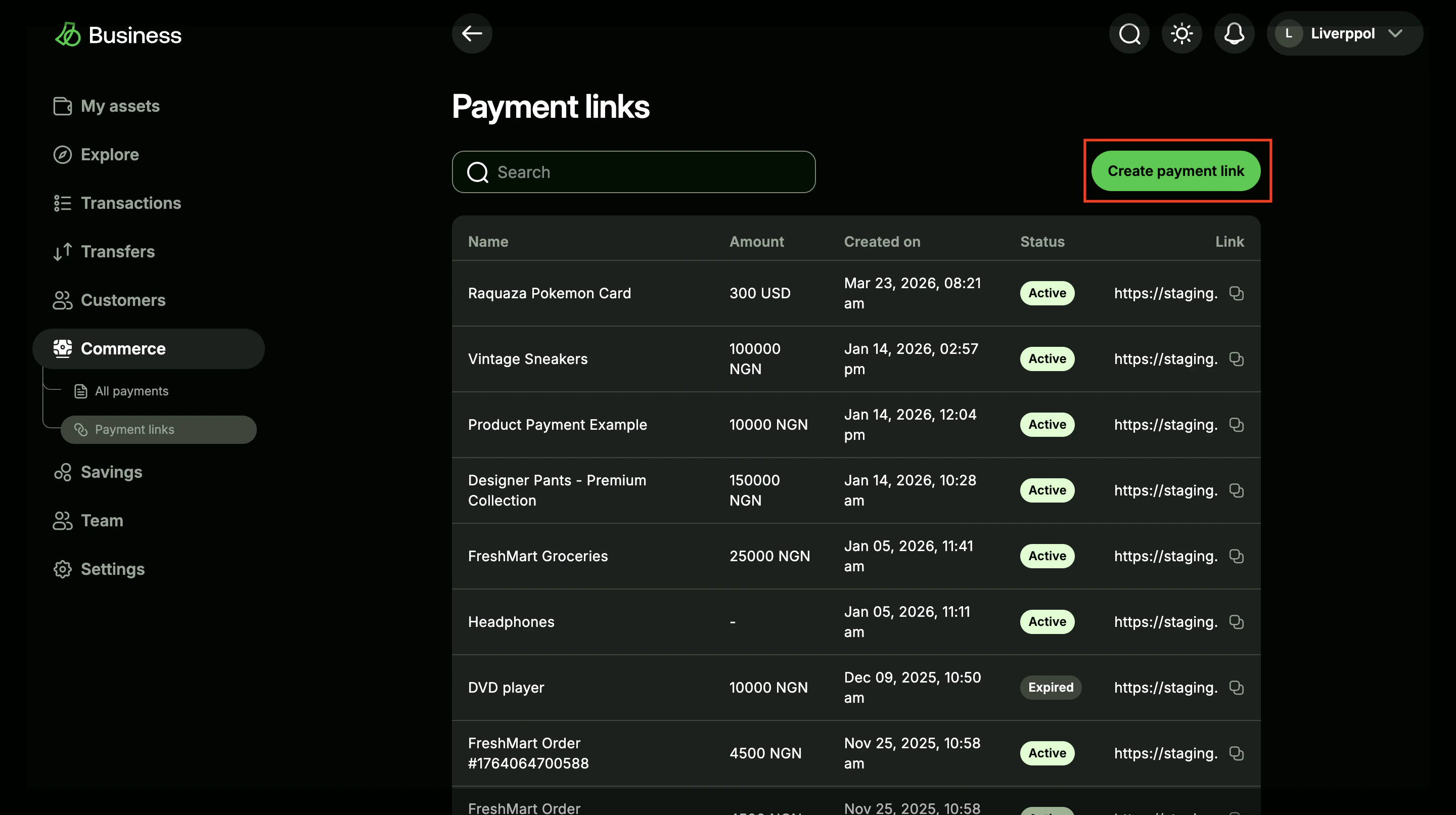
Log in to Busha Business, go to **Commerce** → **Payment Links**, and click **Create Payment Link**.
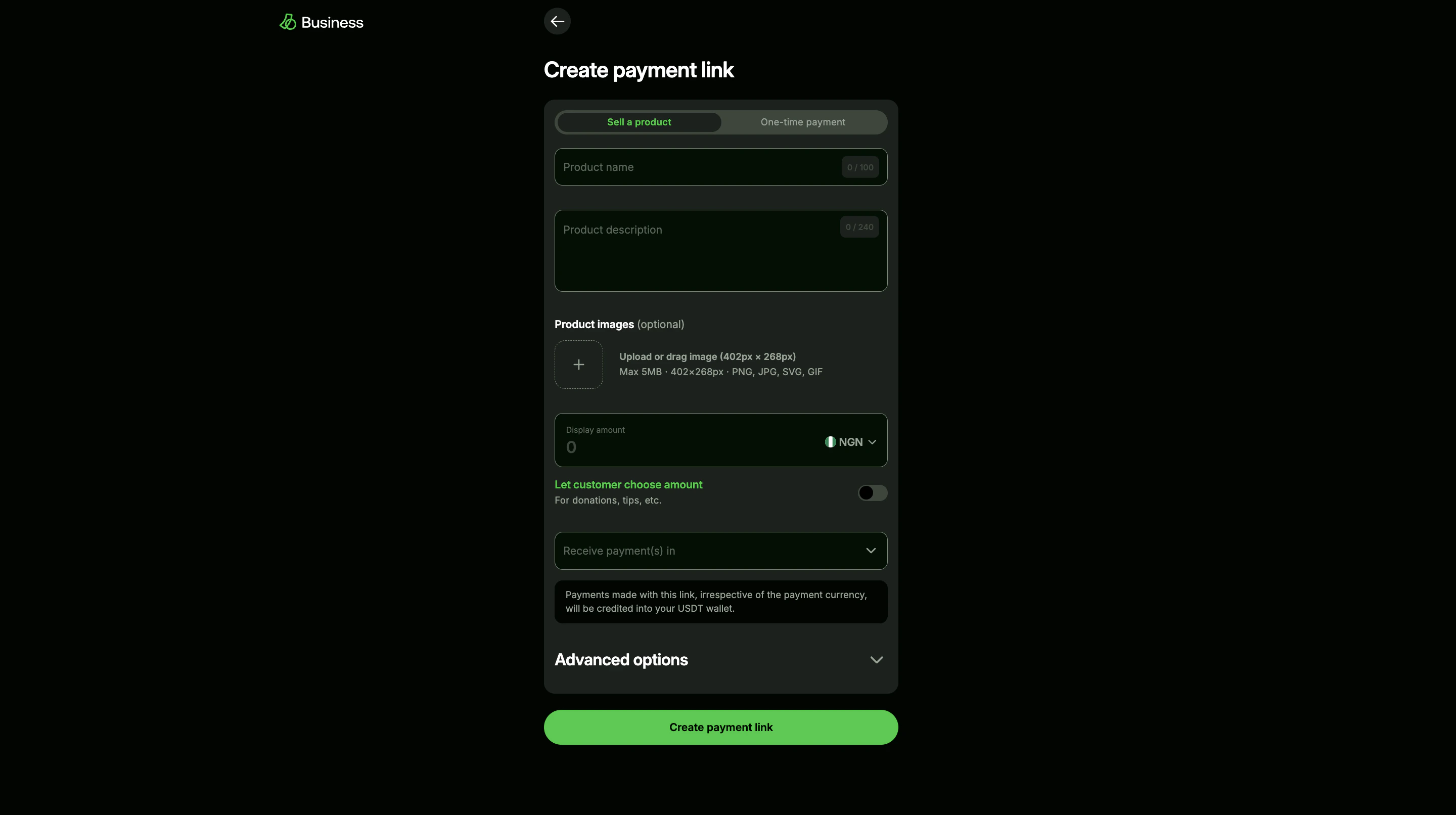
 Add the product or payment details your customer should see, then click **Create Payment Link**.
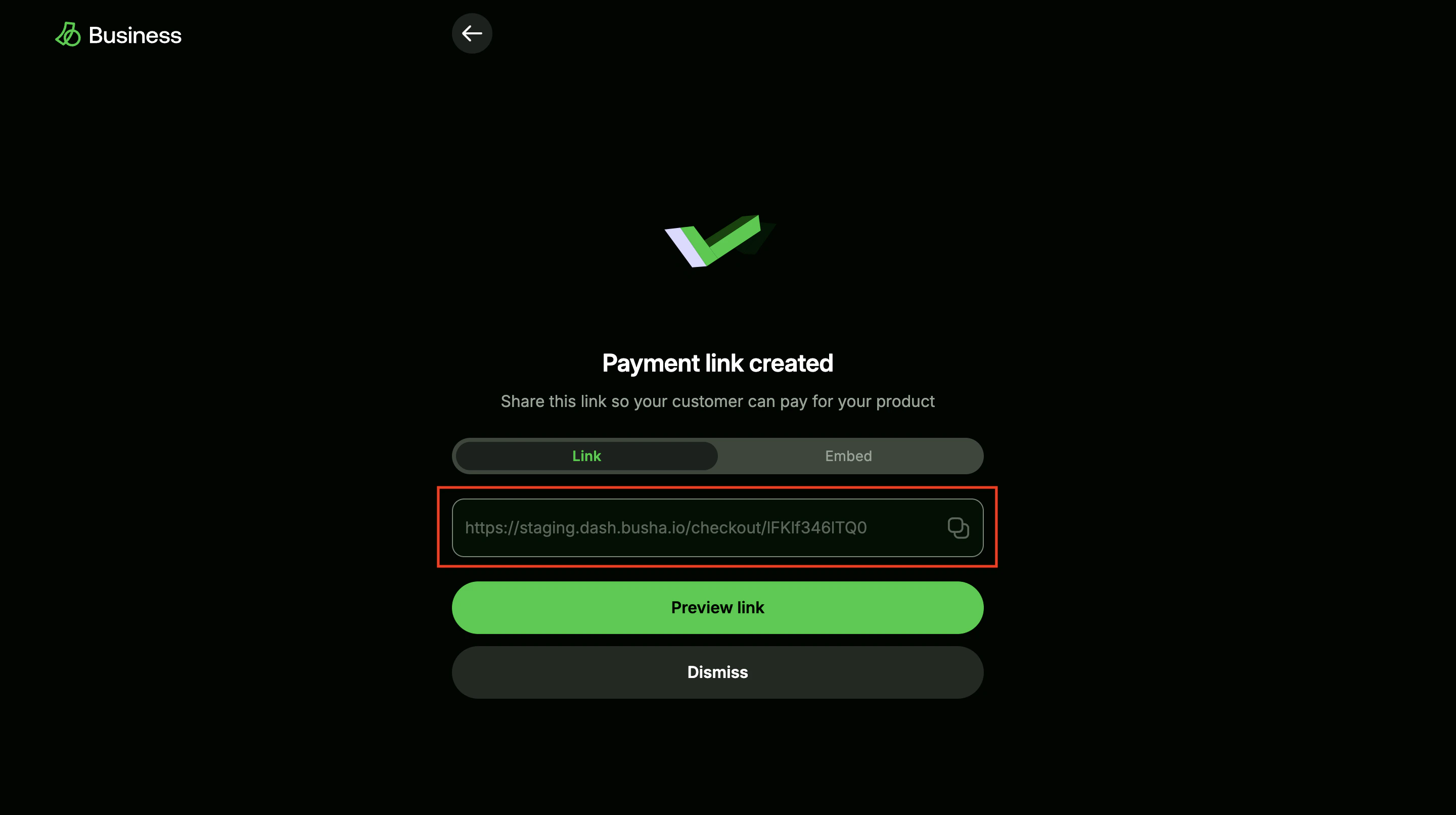
 Copy the generated checkout URL and send it anywhere you sell from, for example, WhatsApp, Instagram, email, or SMS.
 ### Sample checkout link
Use this staging link to see the kind of checkout your customer receives:
`https://staging.dash.busha.io/checkout/Q4Yfew3cT8F5`
[Open the sample checkout in a new tab](https://staging.dash.busha.io/checkout/Q4Yfew3cT8F5).
## What your customer sees
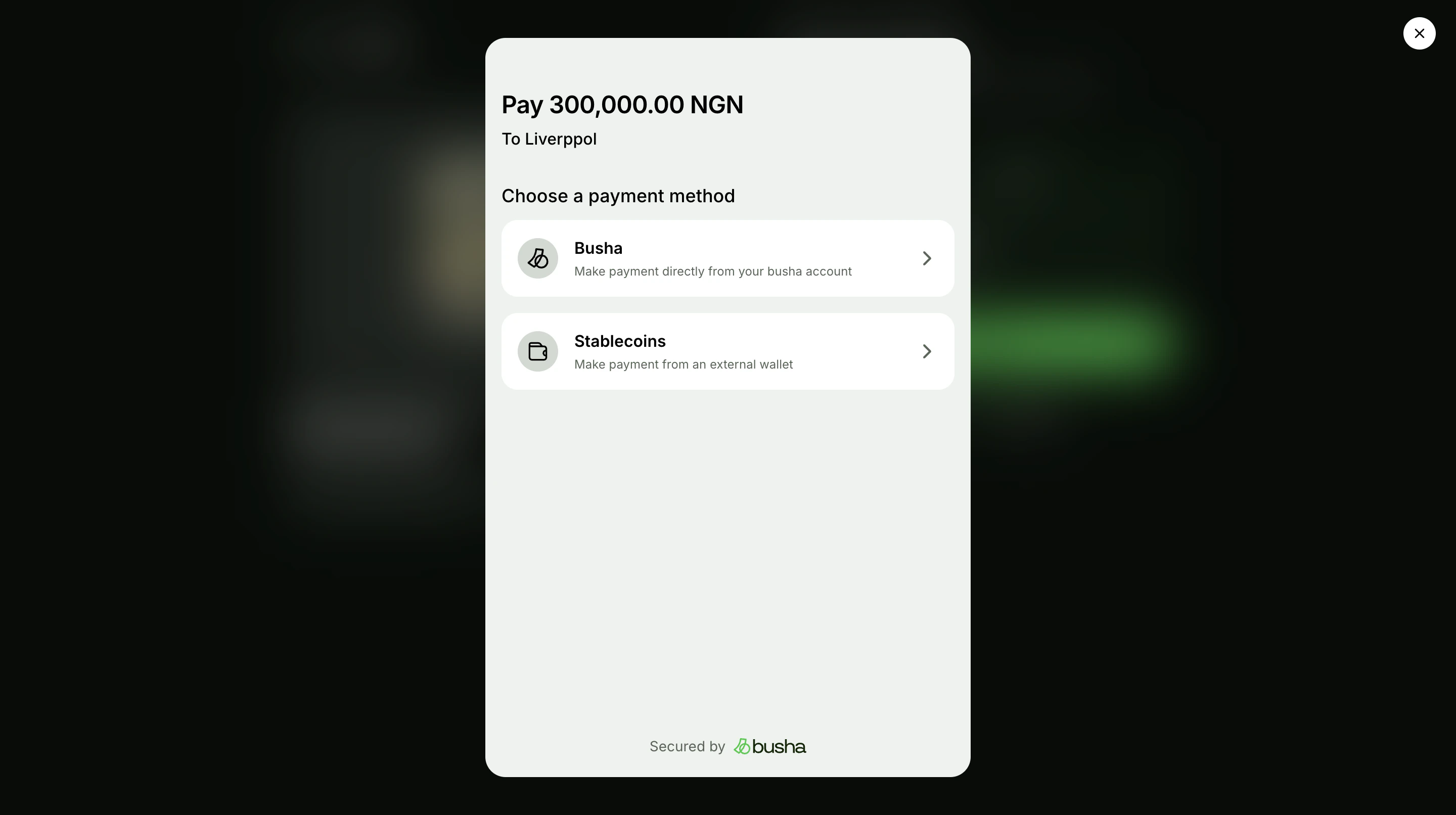
The customer lands on a Busha-hosted payment page with the amount and payment details.
### Sample checkout link
Use this staging link to see the kind of checkout your customer receives:
`https://staging.dash.busha.io/checkout/Q4Yfew3cT8F5`
[Open the sample checkout in a new tab](https://staging.dash.busha.io/checkout/Q4Yfew3cT8F5).
## What your customer sees
The customer lands on a Busha-hosted payment page with the amount and payment details.
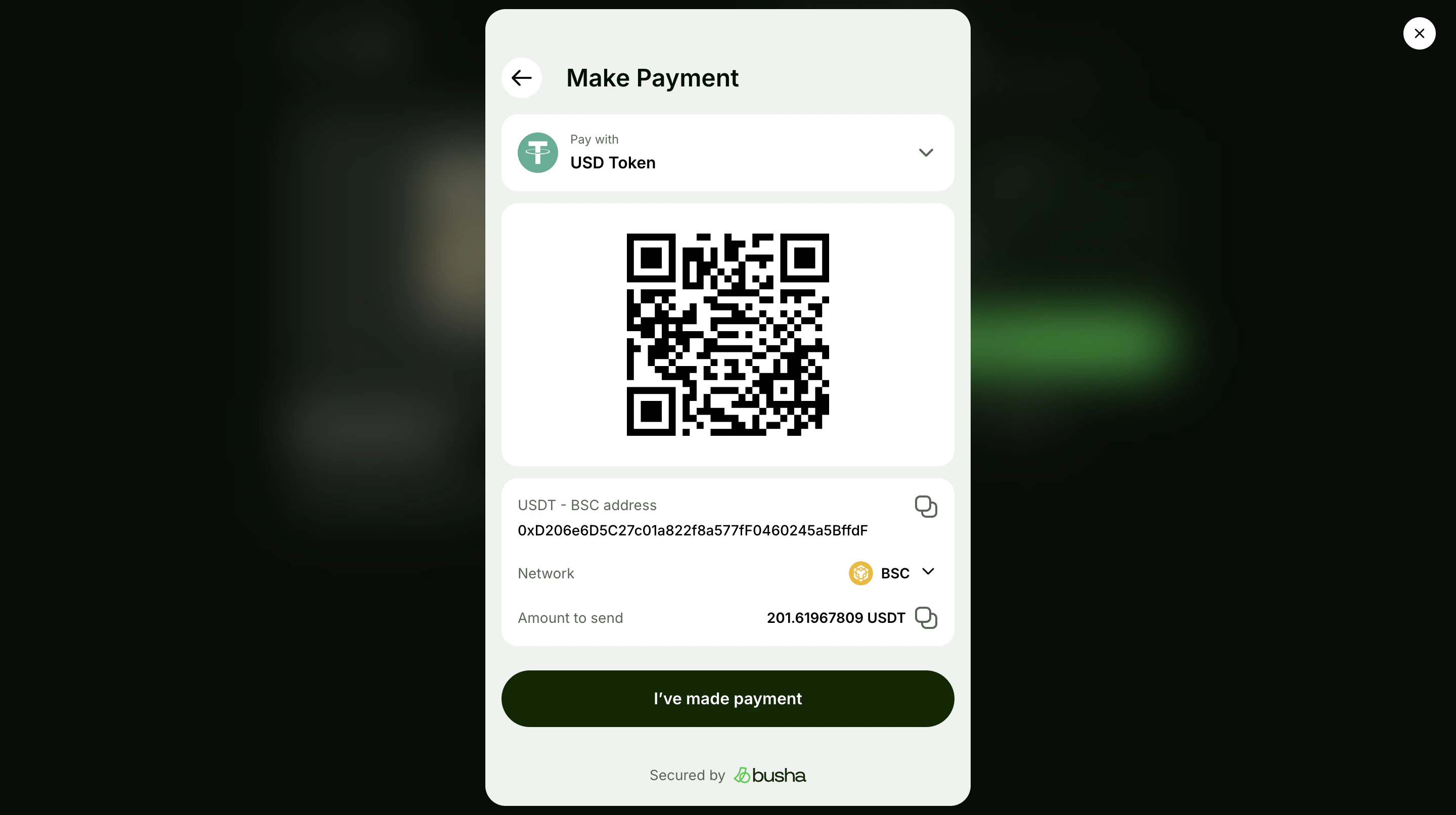
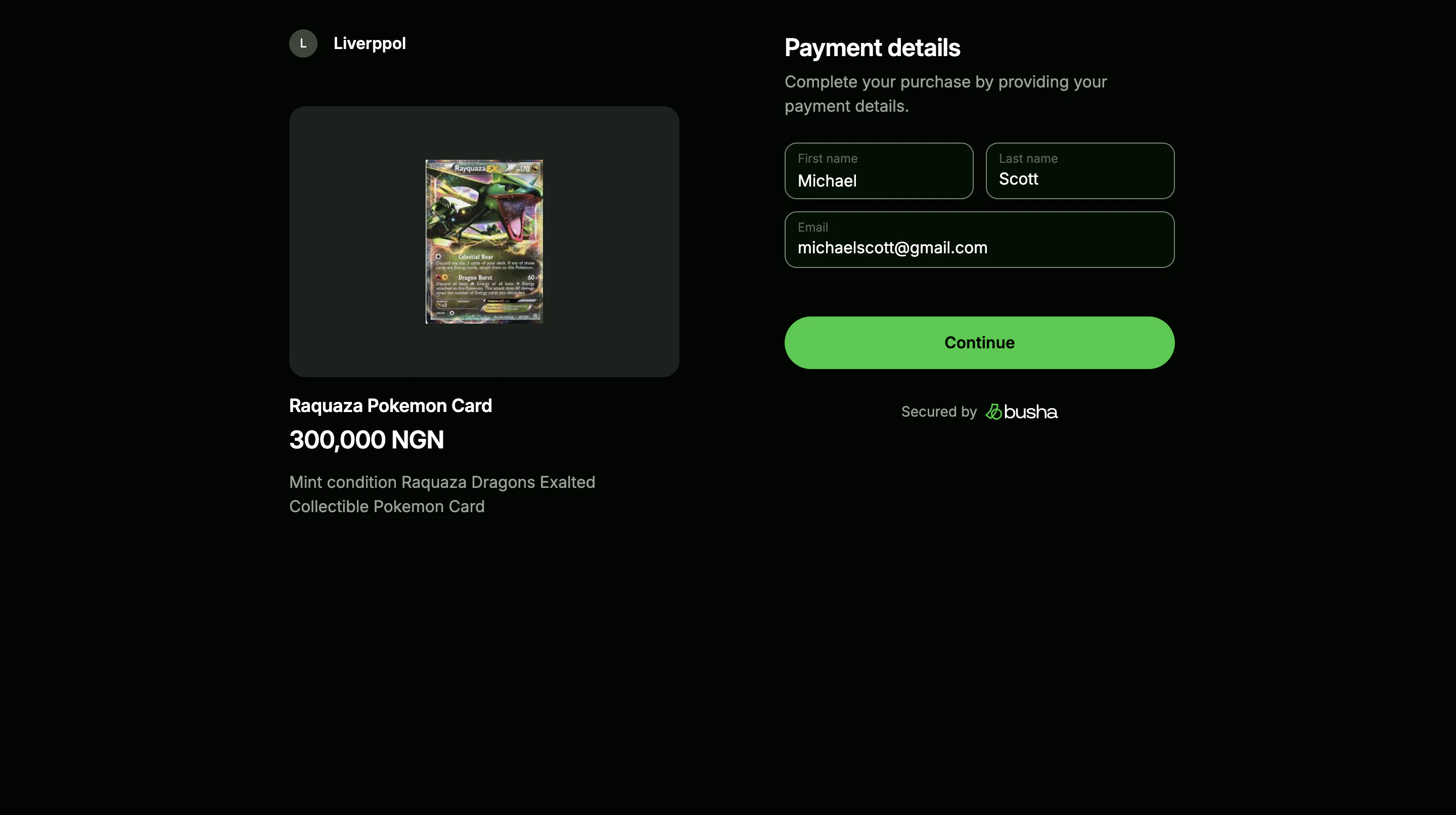 The customer can continue with their Busha account or pay from an external wallet.
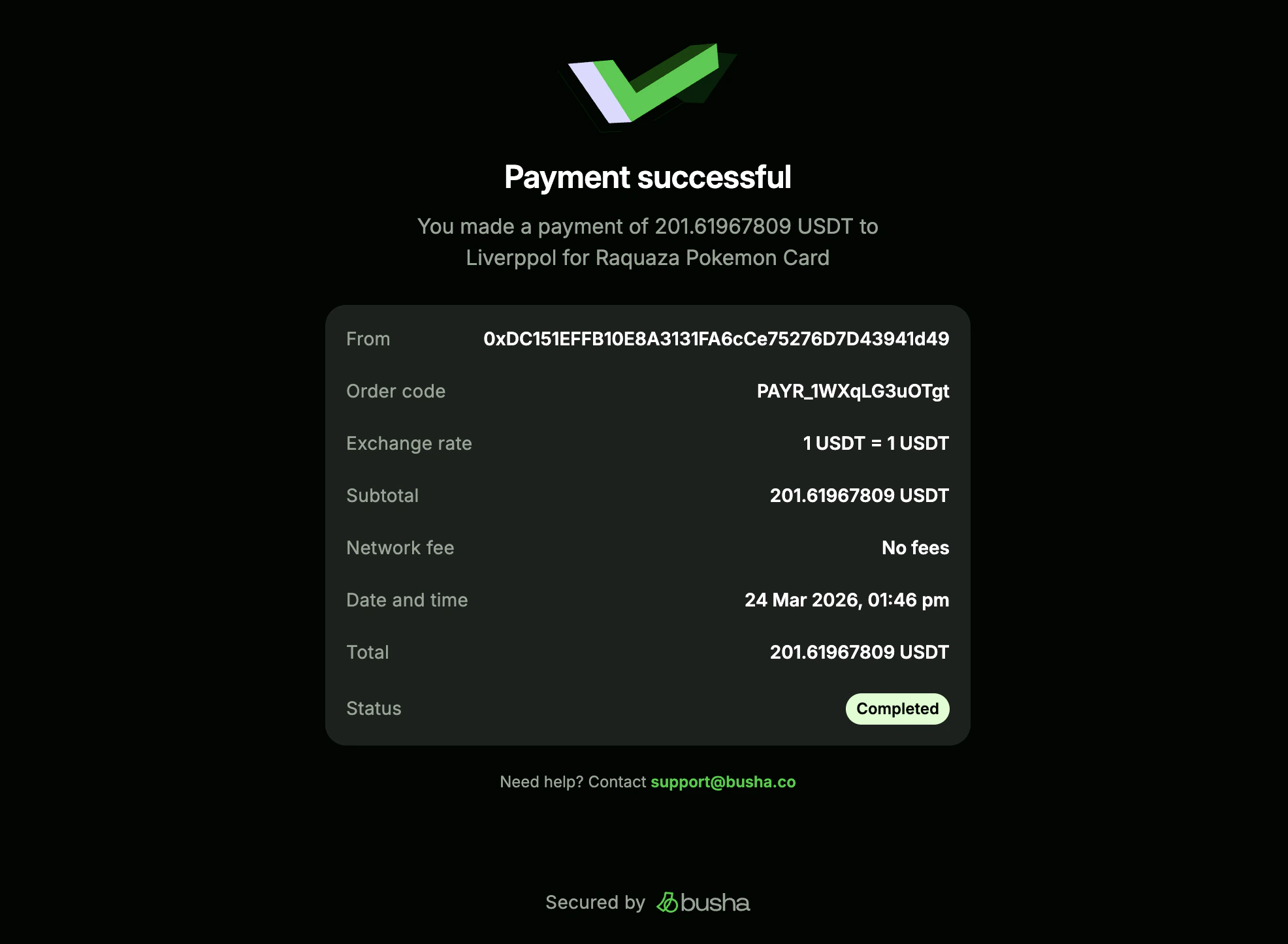
 After the customer pays, Busha shows a confirmation screen and the funds appear in your balance.
 ## What's Next?
* [Accept Stablecoin with SDK Integration](/guides/accepting-stablecoin-payments/payment-widget) - Add a crypto checkout directly to your website or app.
## What's Next?
* [Accept Stablecoin with SDK Integration](/guides/accepting-stablecoin-payments/payment-widget) - Add a crypto checkout directly to your website or app.